Budget Journals
Changes to the annual operating revenue and expenditures must be submitted using a Budget Journal.
How to Complete a Budget Journal
For use by departments in the completion of a budget journal in PeopleSoft Finance.
Budgets related to G&C projects do NOT follow this process. Budget journals establish a budget for a particular Account-Fund-Department-Project-Program combination and are created by budget period/fiscal year.
- Log into PeopleSoft Finance and use the NavBar to access Menu > Commitment Control > Budget Journals > Enter Budget Journals.
- Enter Budget Journals page will appear.
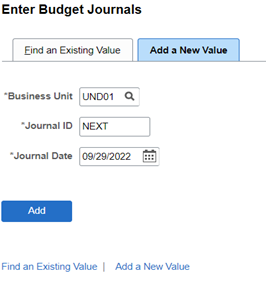
- Make sure the “Add a New Value” tab is chosen.
- Keep the default values of Business Unit: “UND01”; Journal ID: “NEXT”."
- For the Journal Date field, use today’s date unless it is fiscal year end.
- If it is fiscal year end and we are entering for the previous fiscal year, use 06/30/20XX.
- Click “Add” once all areas are filled in.
3. Within the “Budget Header” tab, complete the following:
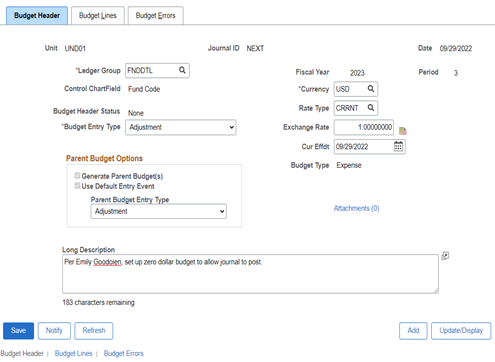
- Ledger Group – Utilize Appendix A to find the correct ledger group (utilize the magnifying glass in order to search).
- Note: Budget Journals can only be entered for one type of ledger group. For example, if increasing an expense budget and a revenue budget, you will need to complete two separate budget journals; one for Expense and one for Revenue.
- Budget Entry Type – “Adjustment” (do not use Original).
- Parent Budget Options (Expense Ledgers Only) – Only choose “Adjustment” from “Parent Budget Entry Type” dropdown.
- Attachments – Add files for backup by clicking the blue “Attachments” link.
- Long Description – A description is required to be entered. If two ledger groups are needed it is helpful to identify in the description box the funding string that ties to the other corresponding ledger group.
- Everything else on this tab will auto-fill.
4. Within the “Budget Lines” tab, complete the following:
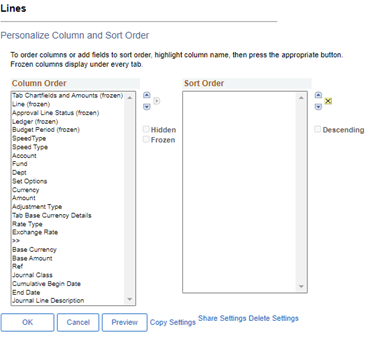
- The first time entering a budget journal, click on the symbol beneath “Lines”, then
click “Personalize”. This will allow you to change the order of the chartfields to
match the screenshot above.
- Hide column names here, and they will not show within the chartfields.
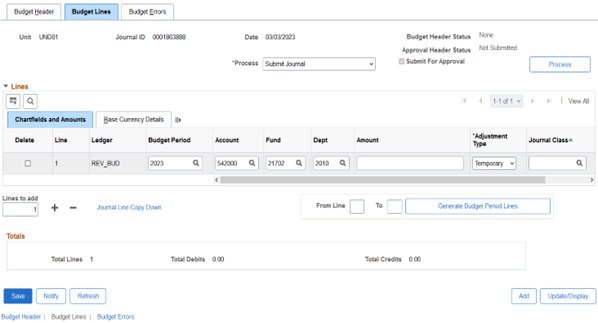
- Fill in the following fields:
- Budget Period – current fiscal year/fiscal year for which we are submitting the budget journal.
- Account – Child account code, which can be found via Appendix B (utilize the magnifying glass).
- Fund – Fund number associated with budget adjustment.
- Dept – Department number associated with budget adjustment.
- Amount – Amount the budget is being adjusted (positive increases budget; negative decreases budget)
- Adjustment Type – “Temporary” (choose from dropdown)
- Note: Permanent will not be used.
- Journal Class – leave this blank unless it is for a carryforward fund (use “CARRYFWD”).
Carryforward fund series are as follows:
- 30501-30549
- 30510-30512
- 31003
- 31312-31315
- 31911-31923
- 31930-31949
- When adding more than one line, change “1” in the “Lines to Add” box to the number
of lines needed, then click the “+”
- Note: If a line has already been keyed in prior to increasing the number in the “Lines to add” box, the lines added will have the same information as what was initially in row/line 1. Simply type over the prefilled information with the new information.
- When deleting lines, click the “Delete” checkbox in the row(s)/line(s) to be deleted, then click the “-“
- Click “Save”.
5. Perform a Budget Pre-Check to check for errors:
- Go to the “Process” dropdown and select “Budget Pre-Check.”
- Click the “Process” button. The following pop-up may appear:
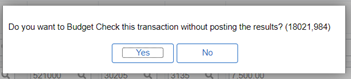
- Click on “Yes”
- Another pop-up may appear:
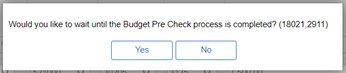
- Click on “Yes”
- Upon the system running the check, the “Budget Header Status” will return as either “Checked Only” or “Error.”
- If “Error” status is returned, fix the error and click “Save” at the bottom of the page.
- Perform another Budget Pre-Check per Step 5 instructions above.
- Upon receiving a “Budget Header Status” of “Checked Only”, move onto Step 6 to submit budget journal for review.
6. To submit the budget journal for review:
- Go to the “Process” dropdown and select “Submit Journal.”
- Click the “Process” button. Once this has been clicked, the “Approval Header Status” should change from “Not Submitted” to “Pending.”
- Once the “Approval Header Status” says “Pending” you will know that the budget journal has been routed to the approver and you are now done with your portion of the process.
Budget Approvers
- Approver will be notified via email that a budget journal needs to be approved. Upon approval, the budget journal is completed and a notification via email will be sent to the individual who initiated the budget journal.
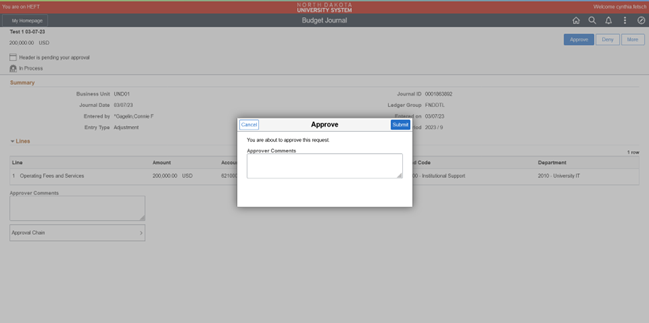
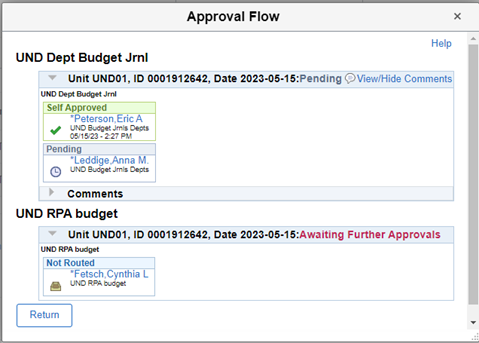
- To see the status of where the budget journal is in the approval workflow, click on
the “Pending” Approval Header Status on the Budget Lines tab of the budget journal.
This will open the “Approval Flow” screen:
- Approved or Self Approved: The budget journal has been approved by this approver.
- Pending: The budget journal is currently sitting in this approver’s workflow queue for approval.
- Not Routed: The budget journal will route to these approvers after the Pending approver approves the budget journal.
Appendix A - Ledger Groups
| Group | Description | Fund Range |
|---|---|---|
| CASHR | Cash Revenue Ledger Group |
|
| CSHDTL | Cash Detail Ledger Group - Expense Accounts |
|
| REVENUE | Revenue Ledger Group |
|
| FNDDTL | Fund Detail Ledger Group - Expense Accounts |
|
| GNTDTL | Grant Detail Ledger Group - Expense Budget |
40000-49999 |
| GRNTREV | Grant Revenue Ledger Group - Revenue |
40000-49999 |
| PROJREV | Project Revenue Ledger Group |
|
| PRJDTL | Project Detail Ledger Group - Expense Budget |
|
Appendix B
Child Account Codes used for Ledger Groups CASHR, REVENUE, GRNTREV, PROJREV
| Account | Description |
|---|---|
| 400000 | REVENUE |
| 440000 | Licenses, Fees & Permits |
| 441000 | Fines-Forfeitures-Escheat |
| 442000 | Cash/Investment Earnings |
| 450000 | Federal Awards |
| 451000 | State Awards |
| 452000 | Private Awards |
| 460000 | Tuition and Fees |
| 461000 | Appropriations |
| 462000 | Charges for Service/Sales |
| 470000 | Auxiliary Services |
| 471000 | Medical Charges Services/Sales |
| 472000 | Leases, Rents, and Royalties |
| 473000 | Off-Site Medical Fees & Serv |
| 474000 | GME/Resident |
| 475000 | Medical Service Plan (MSP) |
| 478000 | Contributions & Donations |
| 479000 | Interdepartmental Revenue |
| 480000 | Other Misc Rev |
| 481000 | Sale of Capital Assets |
| 483000 | Proceeds of Debt |
| 484000 | Indirect Costs |
| 490000 | Transfers In |
| 491000 | Interdept Transfer |
Child Account Codes used for Ledger Groups CSHDTL, FNDDTL, GNTDTL, PRJDTL
| Account | Description |
|---|---|
| 511000 | Salaries - Regular - Benefitted |
| 512000 | Salaries - Other |
| 513000 | Temp - Salaries - Non Benefitted |
| 514000 | Overtime |
| 515000 | Salaries - Faculty |
| 516000 | Fringe Benefits |
| 517000 | Salaries - Graduate Assistants |
| 518000 | Other Taxable Compensation |
| 519000 | Salaries Other Benefitted |
| 521000 | Travel |
| 522000 | Travel International |
| 531000 | Supplies - IT Software |
| 532000 | Supply/Material - Professional |
| 533000 | Food and Clothing |
| 534000 | Bldg, Grounds, Vehicle Supply |
| 535000 | Miscellaneous Supplies |
| 536000 | Office Supplies |
| 541000 | Postage |
| 542000 | Printing |
| 551000 | IT Equipment under $5,000 |
| 552000 | Other Equipment under $5,000 |
| 561000 | Utilities |
| 571000 | Insurance |
| 581000 | Rental/Lease - Equipment & Other |
| 582000 | Rental/Lease - Building/Land |
| 591000 | Repairs |
| 602000 | IT - Communications |
| 611000 | Professional Development |
| 621000 | Operating Fees and Services |
| 622000 | Participant Support |
| 623000 | Professional Fees and Services |
| 624000 | Subcontracts and Subrecipients |
| 625000 | Medical, Dental, and Optical |
| 626000 | Online Prog Manage (OPM) Fee |
| 628000 | Strategic Investment Fee |
| 629000 | Support Allocation Costs |
| 631000 | Miscellaneous Expenses |
| 641000 | Interest Expense |
| 651000 | Cost of Goods Sold |
| 661000 | Waivers/Scholarships/Fellowships |
| 671000 | Non Operating Expenses |
| 681000 | Capital Assets |
| 682000 | Land and Buildings |
| 683000 | Other Capital Payments |
| 691000 | Equipment Over $5,000 |
| 693000 | IT Equipment Over $5,000 |
| 701000 | Bond Payments |
| 702000 | Depreciation Expense |
| 715000 | Other Additions/Deductions |
| 715001 | Other Additions/Deductions |
| 721000 | Interdept Transfer |
| 722000 | Transfers Out |
| 722001 | Transfers Out |
| 730001 | Facilities & Administration |
| 730002 | Facilities & Administration |