Position Funding Forms
Changes to Department Budget Tables must be submitted using a Position Funding Form.
How to Complete a Position Funding Form (PFF)
The following steps should be completed when filling out a PFF. Completed PFFs should be emailed to the Shared Service Center.
Occupant Information
- Choose One - Mark the type of employee for which the form is being completed.
- Single or Pool - Mark “Single Occupant” or “Pool Position”.
- Effective Date - Enter the effective date (pay periods begin on the 1st and 16th of the month).
- Position # - Enter position number (please contact Human Resources if position # is unknown).
- Department # - Enter department number to which position number is assigned.
- Name - Enter last name and first name. If it is a Pool position, you can enter “Pool”
in the last name box.
- Send only one form for all employees in that position, if their funding will be the same.
- Empl ID - Enter the Empl ID; leave blank if Pool position.
Funding Source
- Fund Code – Enter 5 character value of fund number being used.
- Department # - Enter 4 character department number to which funding source belongs.
- Department name – Enter name of department to which funding source belongs.
- Project/grant number (if applicable) - Begins with UND and is 10 characters.
- Program number (if applicable) - Is 5 characters, the leading 0 is highlighted in gray; enter the last 4 digits. You cannot have both a project and program number.
- Account - All start with “51”, which is highlighted in gray; enter the last 4 digits from the list below. This will auto fill as a letter at the end of the Combo Code, indicating the account to which salary will post.. Use the following chart to help choose the correct account:
| Character | Account | Account Description | Example Employees |
|---|---|---|---|
| R | 511002 | Salaries - Regular - Benefitted | Regular benefitted staff |
| S | 511005 | Staff Overload | Exempt staff working >100% - Not for faculty overload |
| O | 512005 | Salary - Other | Students only |
| T | 513005 | Temporary - Salaries - Non-Benefitted | Temporary employees, non-students, employee awards, other staff pay |
| V | 514005 | Overtime | Non-exempt staff overtime |
| F | 515005 | Salaries - Faculty | Full-time / Part-time faculty - scientist / specialist, resident medical stipends, post doctoral pay, department chair supplement, other faculty payments |
| P | 515010 | Faculty Overload | Faculty working / teaching >100% |
| G | 517005 | Salaries - Graduate Assistants |
GRA, GSA, GTA |
- Combo Code – Auto-filled based on information entered in preceding row. All Combo
Codes must
start with a “U” and end with a letter. Please check for accuracy. - % of Distribution - Enter the percentage for each fund. Percentages must equal 100%.
You can
enter the % with up three decimal places. Repeat for as many Funding Sources as needed. In rare
instances, a dollar amount may be used (please contact the RPA office for guidance). - At the bottom of the form make sure to check the boxes to indicate “Permanent” or
“Temporary” change and “Replace All Funding Sources” or “Add Funding Source”.- A Temporary change is one that will not be carried over to the next FY Budget Module.
- A Permanent change is one that will be carried over to the next FY Budget Module.
- Note any pertinent information in the “Additional Information” box. E.g., If we are
to delete some
or all other funding sources, if you need to add work-study to a position, etc. - Be sure to enter the department contact person and phone number. This should be the
person
who filled out the form or who should be contacted with questions. - At least two departmental signatures are required. Please note that VP/College/Department
requirements may differ/require additional signatures. - If you are sending more than one sheet for one position #, please indicate the number of pages at the bottom. Ex: 1 of 1, 1 of 2, 2 of 2, etc.
When a PFF is not needed
- If not changing position numbers, but changing from work-study to institutional or
vice versa, you do not need to send a PFF (as long as the base funding source(s) and
the H14 work-study funding
are set up on the position). - If you have verified that funding sources are accurate in the Department Budget Table,
when
filling out a Job Data Hire form, a PFF is not needed.
How to Look Up a Funding Source (Combo Code) - to Determine if Setup is Needed
- Sign into PeopleSoft HCM
- Navigation: Main Menu > Set Up HRMS > Product Related > Commitment Accounting > Budget
Information > Combination Code Table
- Set ID = UND01
- Navigation: Main Menu > Set Up HRMS > Product Related > Commitment Accounting > Budget
Information > Combination Code Table
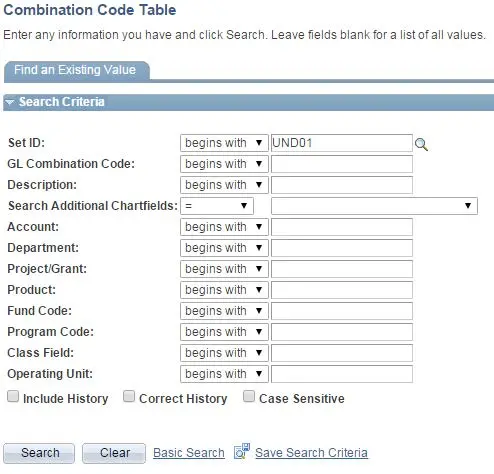
- Enter the Department and Fund Code (and Project/Grant if applicable) in the corresponding fields or enter the beginning of the combo code into the GL Combination Code field.
-
-
- Click Search
- A list will appear with the Search Results
- If your combo code appears in the Search Results and the Status as of Effective Date is Active, then the combo code is set up and ready to use.
- If the combo code is not listed in the Search Results or the Status as of Effective Date is Inactive, then the combo code will need to be set up with either the Shared Service Center or Grants & Contracts.
- A list will appear with the Search Results
- Click Search
-
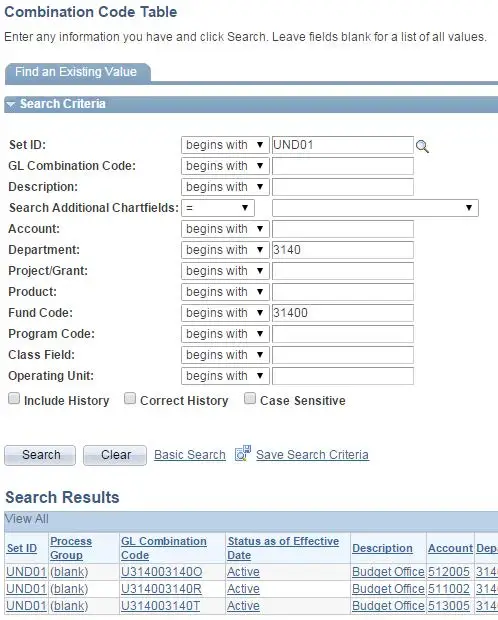
- Example Search using Combo Code U314003140R:
-
Enter the combo code using the Department and Fund Code fields
-
-
-
-
The Combo Code is listed and the Status is Active, therefore it is set up and ready to use.
-
-
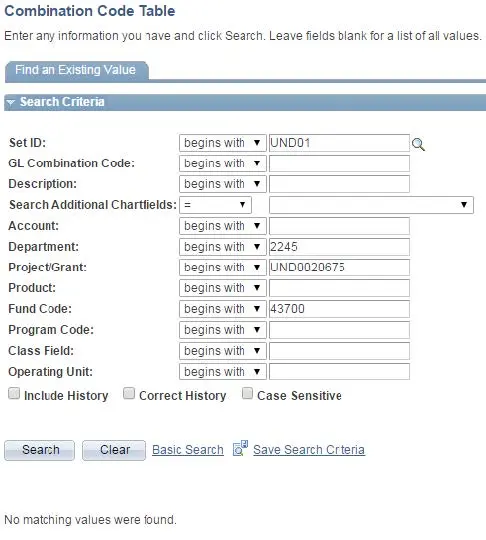
- Example Search using Combo Code U437002245UND0020675G:
- Enter the combo code using the Department, Project/Grant and Fund Code fields
-
-
-
No matching values were found for this combo code. It will need to be set up with Grants & Contracts.
-
-
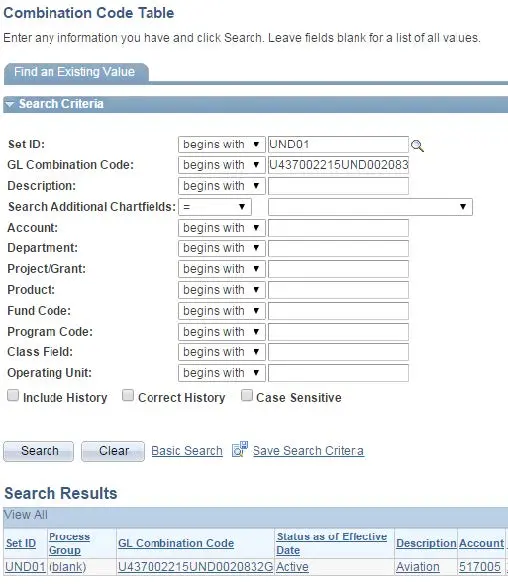
- Example Search using Combo Code U437002215UND0020832O:
-
Enter the combo code using the GL Combination Code field.
-
-
-
-
A combo code is set up for this grant, but not with the correct account code (letter). This combo code has a G and an O is required. It will need to be set up with Grants & Contracts.
-
-
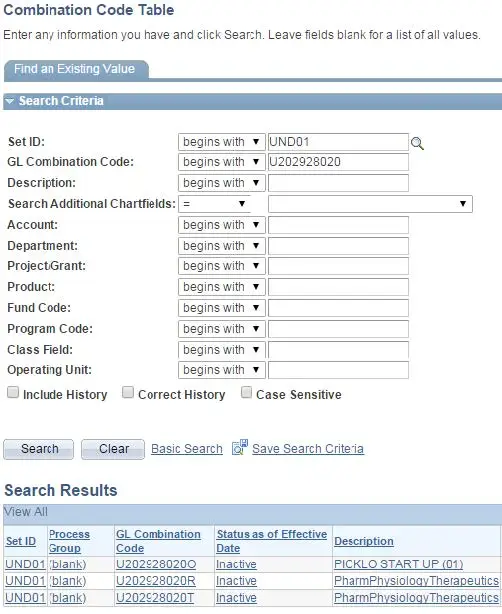
- Example Search using Combo Code U202928020T:
- Enter the combo code using the GL Combination Code field.
-
-
-
The Combo Code is listed, but the Status is Inactive. It will need to be set up with the Shared Service Center.
-
-
How to Request a New Funding Source (Combo Code)
For Combo Codes that include a project ID and are related to a grant & contract, please email the Grants and Contracts Officer for that grant/project.
Include the following information
- Fund number
- Department number
- Project ID
- Account code
- Effective Date
- All grant combo codes begin with a U. See examples below:
- U 43300 8275 UND0020284 T
- U 43300 8275 UND0020284 T
For all other Combo Codes, please email the following to the Shared Service Center
Include the following information:
- Fund number
- Department number
- Account code
- Effective Date
- Project ID (only needed for the following list of fund ranges)
- 14000-14999
- 17000-17499
- 26000-26999 (Alumni Flow-Thru Funds)
- 28000-28999
- 38000-38999
All combo codes begin with a U.
The following are examples of combo codes that do NOT include a project:
- U 23047 2350 R
- U 30732 1070 F
The following are examples of combo codes that DO include a project (see list above of which funds require a project ID):
- U 26060 2320 UNDF048409 F
- U 26101 2750 UNDF040175 R
Please note that salary budgets need to be set up prior to the combo code(s) being requested. Budget Journals can be submitted using the workflow process that has been created within the PeopleSoft Finance system.